
Why does BIOS play an important role in the functioning of the entire system? First of all, BIOS tests the entire system before loading the Windows operating system, and if something is fine, with the help of sound signals it will determine why it does not start the computer. Secondly, the simple settings allow the computer to accelerate, to accelerate the loading of the operating system, to find the errors and to extend the functionality of the motherboard.
The BIOS is much more functional, than it seems at first sight. Let's analyze everything we can do with the help of BIOS.
How to configure the bios
To begin with, I want to specify, that not in any user the BIOS is the same, some functions can be different, they are in other categories or they are even missing.
However, the principle described in this article is available in any BIOS version, launched today.
The most common BIOS producers are:
Bios American Megatrends (ami)

BIOS Phoenix Award
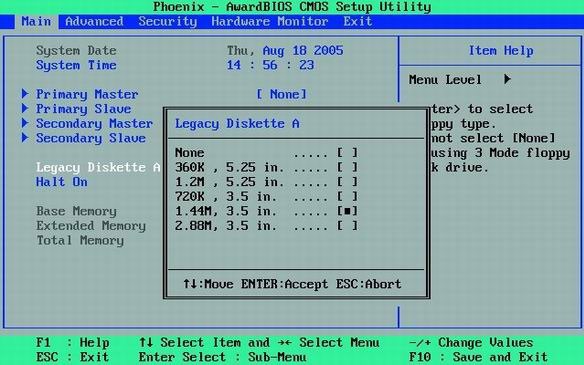
To enter the bios «American Megatrends (Ami)» It should be immediately after starting the computer to press the F2 or F10 key on the keyboard. If you have ”Phoenix Award” You will have to press the key «Of the». The settings described in this article will be done on BIOS ”Phoenix Award”.
Entering BIOS, at the bottom we can see with what keys we can change the BIOS settings and what the key to use to get and save the modified settings.
If you have changed something and you want to come back to the default settings, you will have to choose the function «Load Optimized Default». This function will allow you to return to the optimal and functional settings of the BIOS.
Accelerating computer operation
«Main» sau «Standard CMOS Setup» – This category is responsible for setting the date and time.
Also, you can see the details of the hard disk and the amount of RAM, installed in the computer.
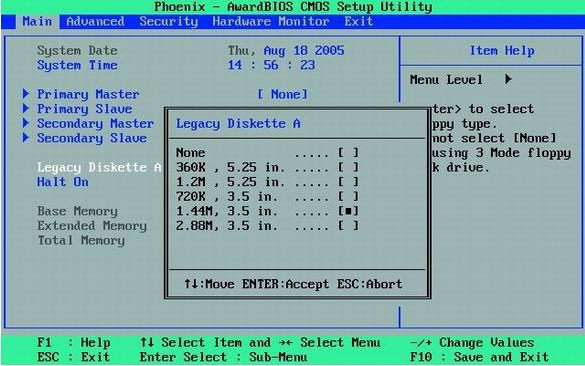
Advice – In this category there is the possibility to set the floppy disk.
It is no longer current for Windows installation, so if you have not installed it in the computer, you can set the value ”None”. This setting will add speed to the computer boot.
«Advanced BIOS Features» – The basic settings can be found in this section.
BIOS configuration to install Windows
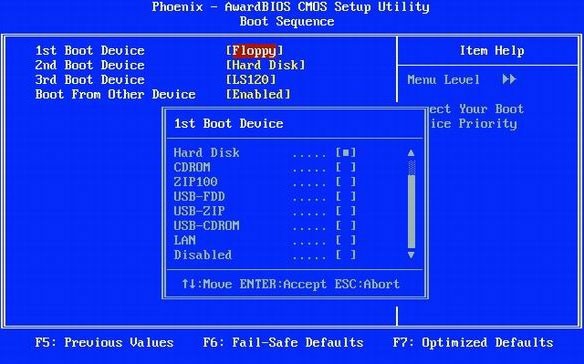
Before installing Windows you need to set the boot from the CD.
To do this we choose the section ”Boot device priority” And for the first boot we select cdrom.
After installing Windows it would be good to change this setting on HDD, so the operating system loading will increase.
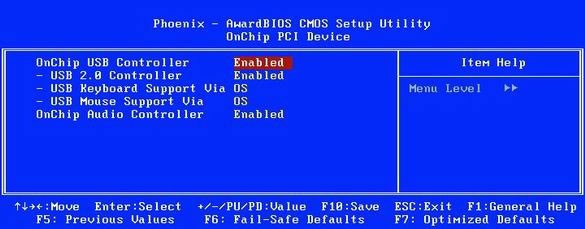
We change the support for USB devices – often it happens that when connecting USB 2.0 – 3.0 devices works at speed 1.1. To solve this problem we will have to enter the subcategory ”OnChip PCI Device” and set the USB controller to 2.0 or 3.0.
By the way, USB 2.0 works only from Windows XP SP 1, USB 3.0 – only from Windows Vista SP1.
The USB stick lights up but does not work – It is a pretty widespread problem. When the USB stick on other computers works without problems, but on your computer does not want to work.
Most likely because it does not have enough USB food, and through BIOS we can increase it. To large it, in the settings of BIOS we find the option «USB 2.0 HS Reference Voltage» and we set the supply to the maximum.
If the problem is not solved, it means you have to take the motherboard to a service, the USB controller has most likely failed.
”Power Management Setup” -You can find all the information about the condition of the components (processor, fans, power supply and hard disks).
In addition, you can set the maximum processor temperature, which in case it will exceed, the computer will restart or close (you choose). Due to this control over the computer, the processor will work much longer.
If you have a cooler with the automatic adjustment of the rotations, you can encounter problems with starting the computer. Because the cooler does not spruce when starting the computer, the BIOS can perceive that the cooler does not work.
And this problem can be eliminated – enough in the option «CPU Fan Failure Warning» to set «Disabled». If you cannot enter the BIOS because of the cooler, you will need to temporarily put a simple cooler, to make changes in the bios.
latest posts published

5k player-love of another audio/video reader

Search Lookeen 10 desktop replaces Windows Search

How to improve battery life in Samsung Galaxy S6

The perfect game pc in the test – What should really be able to do
How many cups of the CPU really need it

What is the modern configuration guest?

Why do memory stick folders appear as shortcuts?

O & O & Partitionation Particione Profession in version 3
How to find the right calendar app
