

With TeamViewer you control you a foreign computer over the Internet Or have your PC controlled by someone else. In this way, for example, problems can be resolved via remote access or Software updates to distant computers be performed. Teamviewer is much more than just a practical long-distance maintenance tool, because thanks to extensive file transmission options, you can quickly apply on the go On important documents in the home office to. In this team viewer tutorial we will show you how to share your screen with TeamViewer and which Features and functions the remote control tool otherwise offers.
On which operating systems can you install TeamViewer?
Teamviewer is available as a download for Windows, Mac, Linux, Chrome OS, Raspberry Pi and in mobile versions for iOS and Android. In addition, with TeamViewer Portable there is also a special version for on-site technicians that offers all functions of the full version and can easily be transported on a USB stick or a comparable medium.
What are the costs of using TeamViewer?
Teamviewer is free for private use, which means that there are no fees for connections between your (private) devices at home or video conferences to support friends and family. As soon as a commercial use (e.g. in the company or home office) takes place, you need a license. If you are interested, you can read the current prices on the TeamViewer homepage.
How safe is Teamviewer?
The connections between the host and the remote calculator are built up by TeamViewer via a public or private key Exchange and protected by 256-bit Aes encryption. This is a symmetrical key procedure that is also used by the military and is considered particularly safe.
1. Set up remote access via TeamViewer – that’s how it works!
1.1. Teamviewer instructions: installation
- Download the TeamViewer app and start the installation after download by double-clicking on the *.exe file.
- Choose «Installation with standard installation«And confirm with»Vote – continue“. If you do not want to save program files on your computer, choose the option“Just start“From. If you want to use TeamViewer more often, we recommend an installation.
- Accept the Conditions of the EULA and the AVV By setting the tick and then click on «Further“.
- Also lead the steps mentioned above On the second PC through.
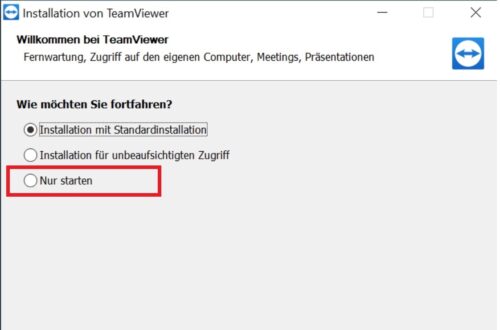
1.2. Teamviewer instructions: divide the screen and control the PC
- After the start, Teamviewer shows for every computer an ID and a password.
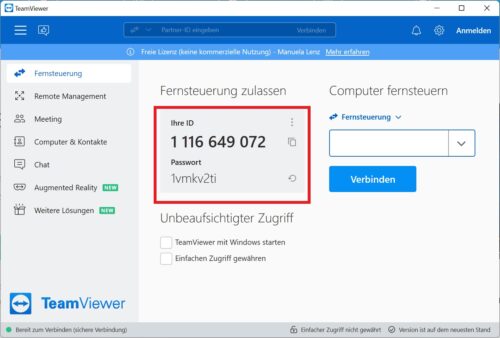
- For remote access, the ID and the password of the remote calculator must be transmitted to you (e.g. by phone).
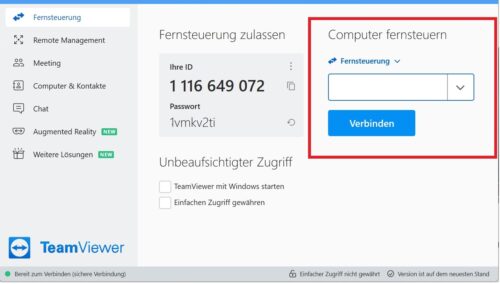
- Give the ID on the right in the area “Contracting computers«A and click on»Connect“.
- After a short connection phase, you will also be asked about the password. Tap the password and confirm with «Register“.
- A window in which the Desktop displayed the remote calculator becomes. At the same time, all programs and applications are minimized on the remote computer.
- You now have the Full control over the remote computer And can carry out all actions that you also use on your own computer, e.g. B. use shortcuts or switch to safe mode. The remote computer can be transmitted By closing Teamviewer But also stop at any time.
Good to know: The remote calculator’s background is blackened to protect the privacy during the entire teamViewer session.
2. Use further functions and features in TeamViewer
Under the point «Actions“In the menu bar you will find numerous other commands that you can run in Teamviewer. This includes, for example, a“Change of direction“, With which they Swap the transmission direction between your and the remote calculator can. You can use the «Remove removed input» command Stop all actions on the remote calculatorso that no input can be made on this.
In addition, the following functions are available in TeamViewer, which can be used by the recipient and the remote calculator can:
-
-
- About the menu point «Audio/Video“Can you start a webcam transmission, a chat, call or video conference and so Exchange directly with your TeamViewer partner.
- The option «File transmission“Opens an Explorer window with your and the data of the remote calculator that is easy moved from one PC to the other by drag and drop can become. Alternatively, you can also do the files directly Send the computer and contact list or via the toolbar. After the transfer, you or your Teamviewer partner are informed about it, Which files were moved.
- With the help of the «Session recording“You can record your current TeamViewer session and look at it at a later date.
- By clicking the plus sign in the upper screen strip you can Open further sessions in parallel. These are displayed in the form of tabs and can easily be called up with the mouse.
-
Tipp: You can control all printers (including network printers) via TeamViewer, which are also used by your local PC. All you have to do is do the drivers under «Extras/options/expanded“Install. In this way, you can print remote documents on your printer at home without having to transfer it to your PC beforehand.
latest posts published

5k player-love of another audio/video reader

Search Lookeen 10 desktop replaces Windows Search

How to improve battery life in Samsung Galaxy S6

The perfect game pc in the test – What should really be able to do

How many cups of the CPU really need it

What is the modern configuration guest?

Why do memory stick folders appear as shortcuts?

O & O & Partitionation Particione Profession in version 3

How to find the right calendar app
